Zeoniq Web Order Credit Pool Setup
-
After user signup web order plan RMS main page will show the unassigned credit.

-
RMS > Common > Web Order Credit Pool

-
Create new credit pool
-
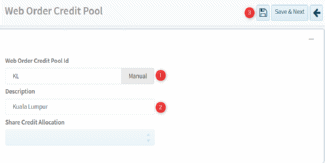
Fill in the ID and Description and SAVE
-
For 1K and 10K Credits select the amount of credit to top up from the module menu and fill in the credit amount then click the Top up and SAVE.
*For unlimited plan kindly refer to 7.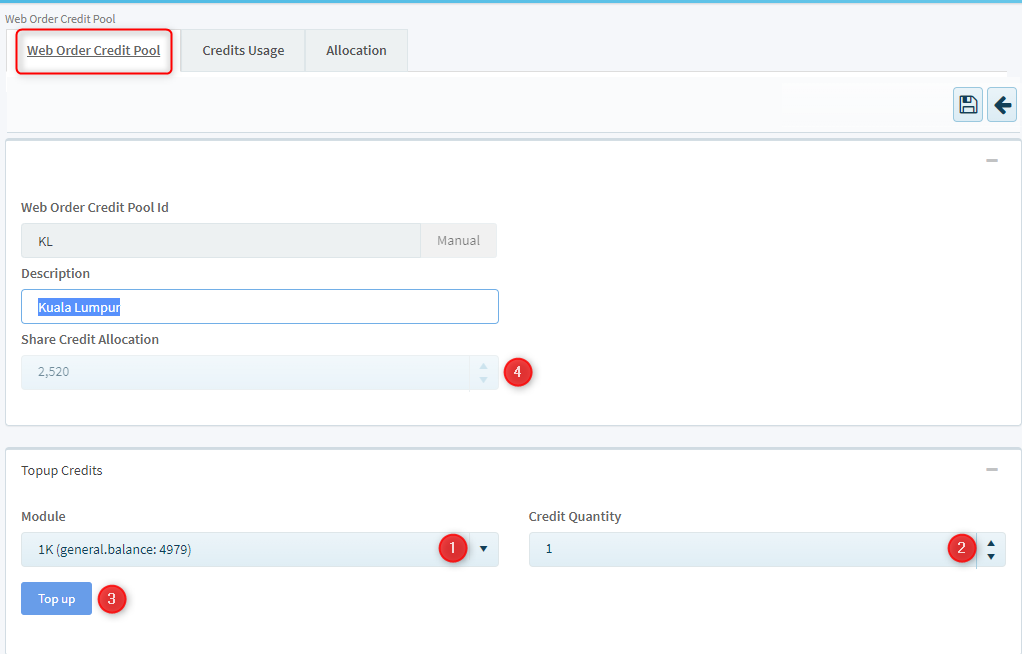
-
1. Web Order Credit Pool Id WO Credit Pool ID.
2. Description description of the Credit Pool.
3. Share Credit Allocation the credit Top up to the selected Credit Pool.
4. Used Credit Allocation the credit had been used from the allocated credit.
5. Balance Credit Allocation balance credit after deduct used credit.
6. Used Unlimited Credit the credit used for unlimited plan.
-
RMS > OUTLET > Select the Outlet, all the outlet use Web Order must assign this.
1. For 1K and 10K Credits kindly select the Web Order Credit Pool Id and SAVE. (If multiple outlet sharing the same credit then all the outlet must assign the same credit pool id)
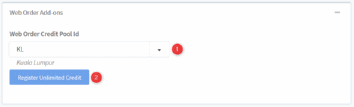
2. For Unlimited Credits click on the Register Unlimited Credit after select the Web Order Credit Pool Id and SAVE.
-
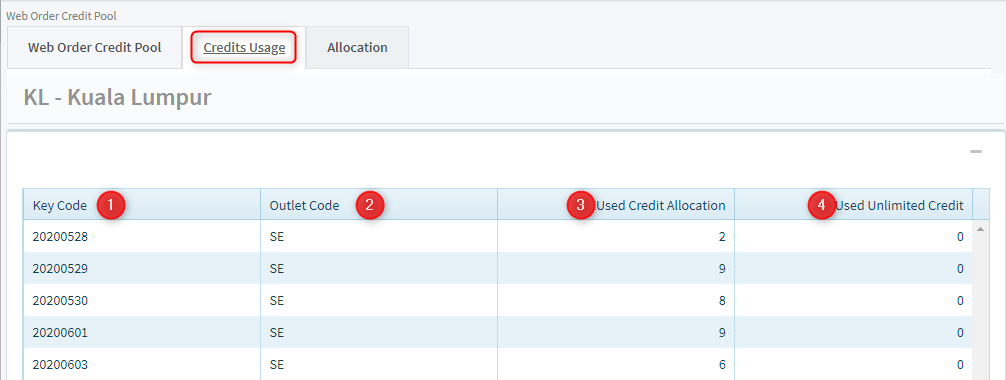
Web Order Credit Pool > By POS to show user used credits by daily.
-
Key Code the date yyyymmdd of credits used as recorded.
-
Outlet Code credits used by outlet.
-
Used Credit Allocation credits used from 1K/10K plan.
-
Used Unlimited Credit credits used from unlimited plan.
-
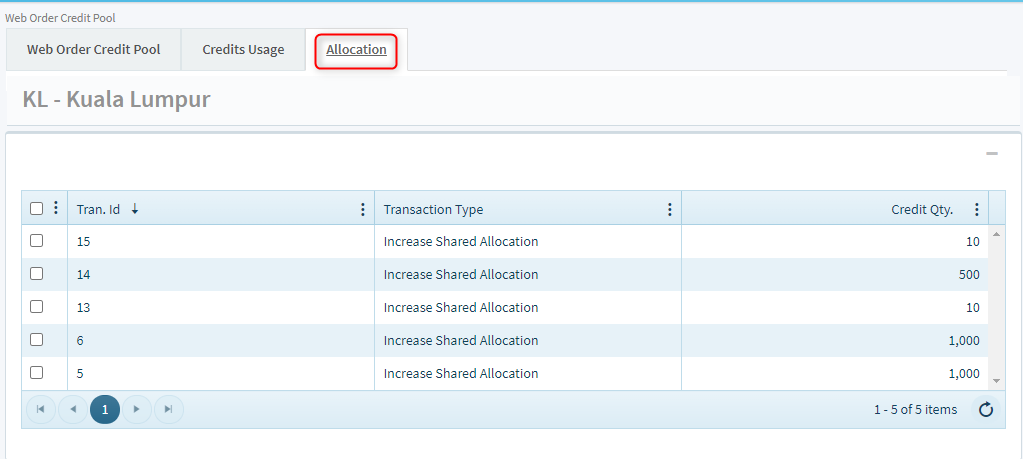
Web Order Credit Pool > Transactions to show the record of assigned credits (1K/10K plan only) to the selected pool.