Start with ZPOS application
- Pre-requisite
- Outlet and Pos Terminal have been created in Zeoniq RMS as below: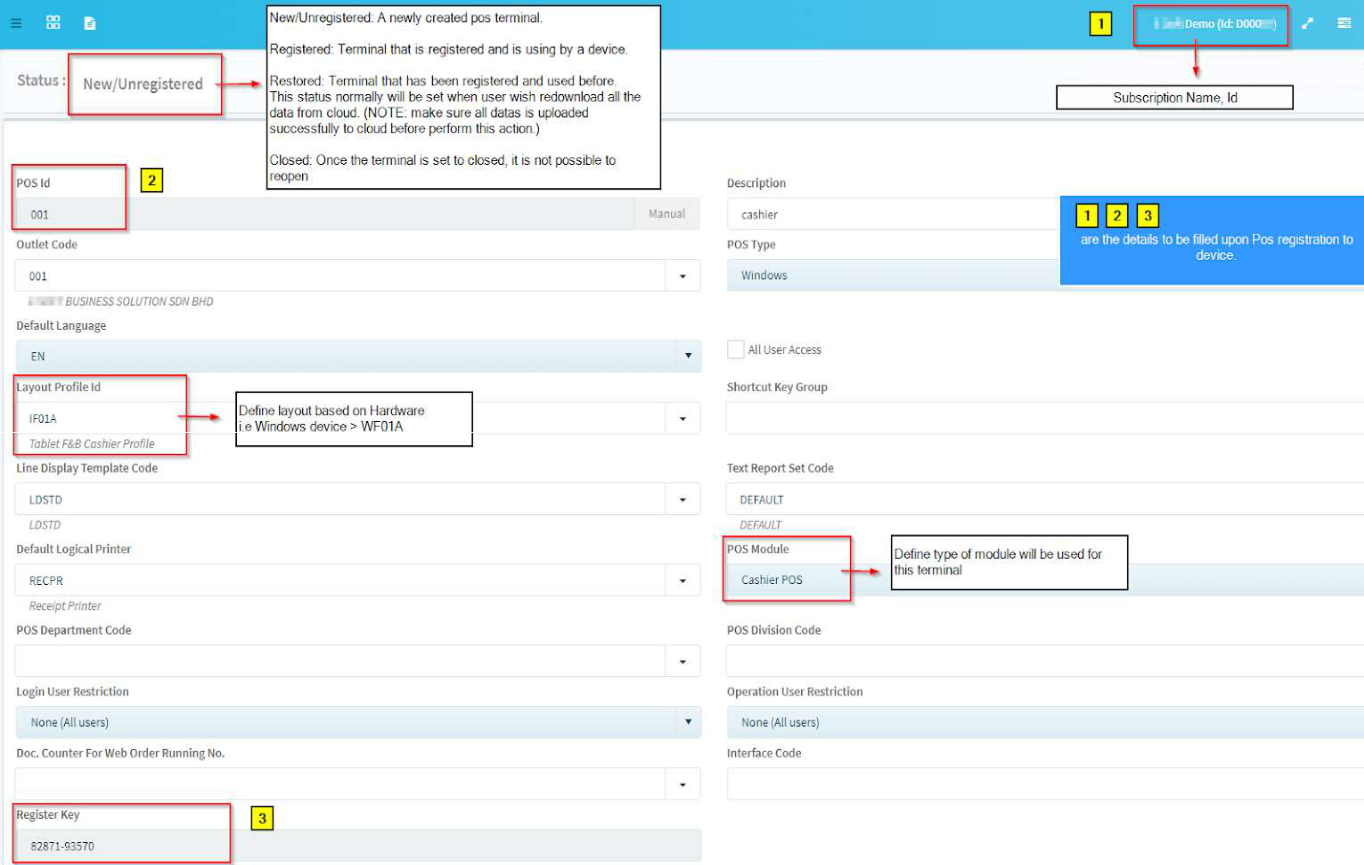
- To open the ZPOS application, go to C:\Zeoniq\ZPOS, and open zpos.exe.
- Registration page will be shown as below:
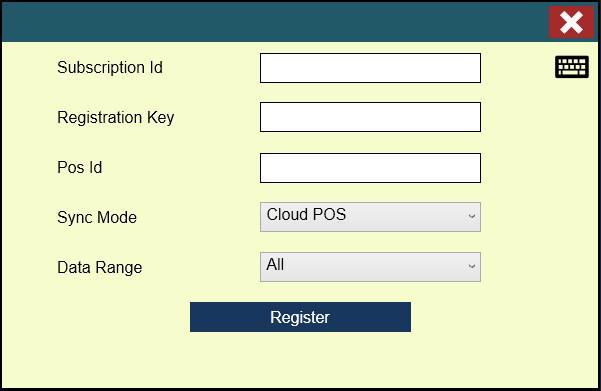
POS Id / Registration Key : Refer to Zeoniq RMS -> POS Terminal page.
Synchronize Mode : ● Cloud POS – Direct linked with RMS.
● Server POS – Main Cashier POS to allowed Order
Station/Second Cashier connect with it.
● Shared Client – Order Station or Second Cashier Linked
with Server POS for Table Sharing
● Standalone Client – Second Cashier Linked with Server
POS for without Table Sharing
Cloud POS Setup
● Sync Mode set to Cloud POS.
● Make sure POS Module in RMS is Cashier license group. (i.e Cashier, Cashier Outright).
Server POS Setup
● Main Cashier (Server POS) and Order Terminal must be same version.
● In Server POS, POS Setting > Sync Mode set to Server POS.
● Server POS terminal firewall is off / or configure as below:
- Window firewall -> Advance Settings
- Add New Inbound Rule -> Port -> TCP 64000
● In order station, Main Cashier IP > input Server POS IP and test connection.
● Both cashier station and order station must be in same network and able to ping each
other.
● For table sharing case, must be in same outlet.
● For every new registered order station, synchronize Server POS to ensure latest
information has retrieved.